
If you have ever seen the strange address content://cz.mobilesoft.appblock.fileprovider/cache/blank.html appear in your browser, device logs, or Android system notifications, you are not alone. Thousands of Android users encounter this unusual URI when browsing the internet or attempting to open blocked websites.
At first glance, this string looks suspicious or malicious. However, in most cases, it is a legitimate system-generated content URI associated with the AppBlock application a productivity tool designed to block distracting websites and apps.
Understanding what this address means, why it appears, and how to fix related issues can help you regain normal browsing functionality and avoid confusion.
This guide explains everything you need to know, including:
-
what this content URI is
-
why it appears
-
whether it is safe
-
how to fix it
-
how it affects Android devices
-
troubleshooting across devices
-
expert solutions and FAQs
What is content://cz.mobilesoft.appblock.fileprovider/cache/blank.html?
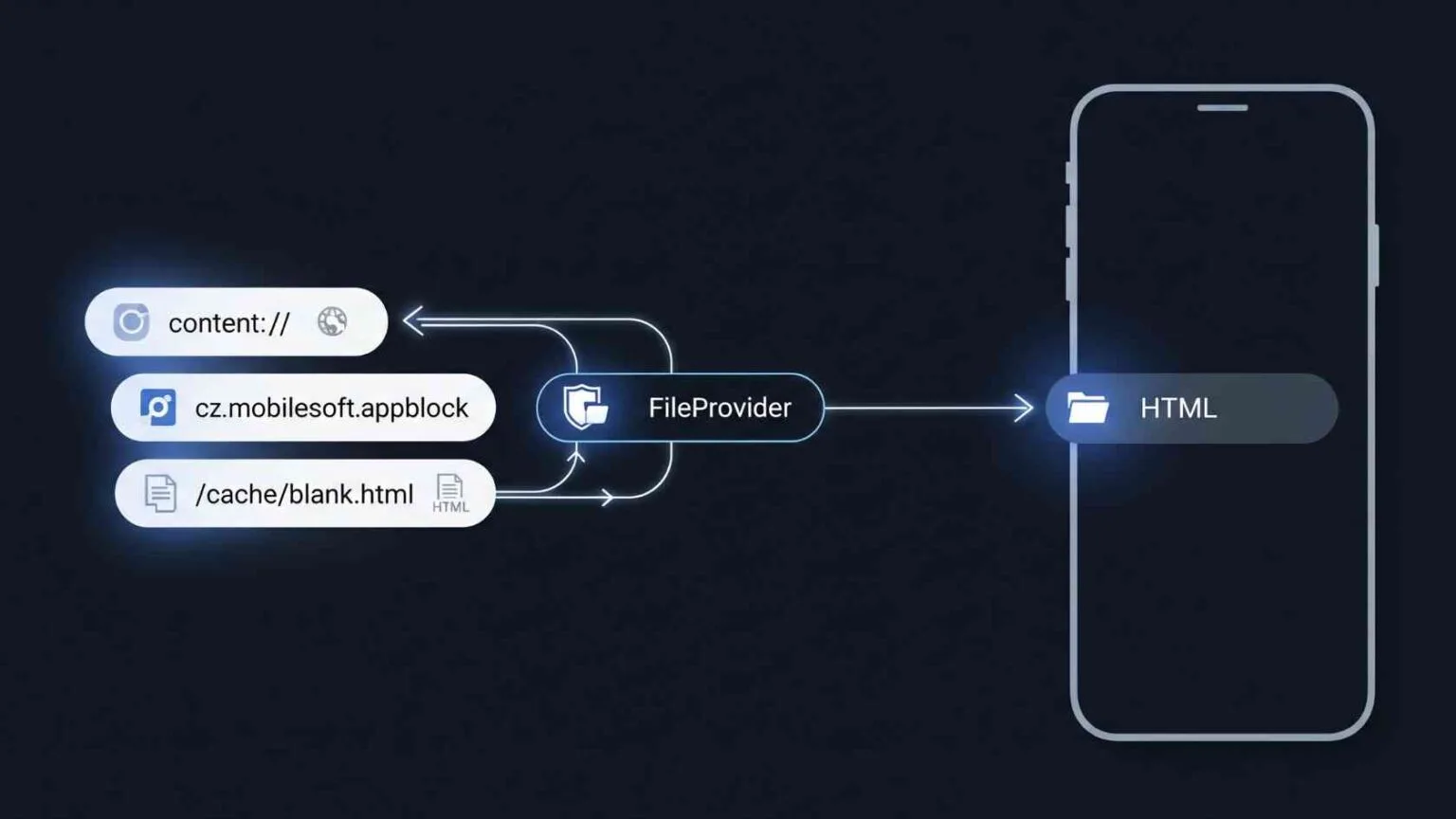
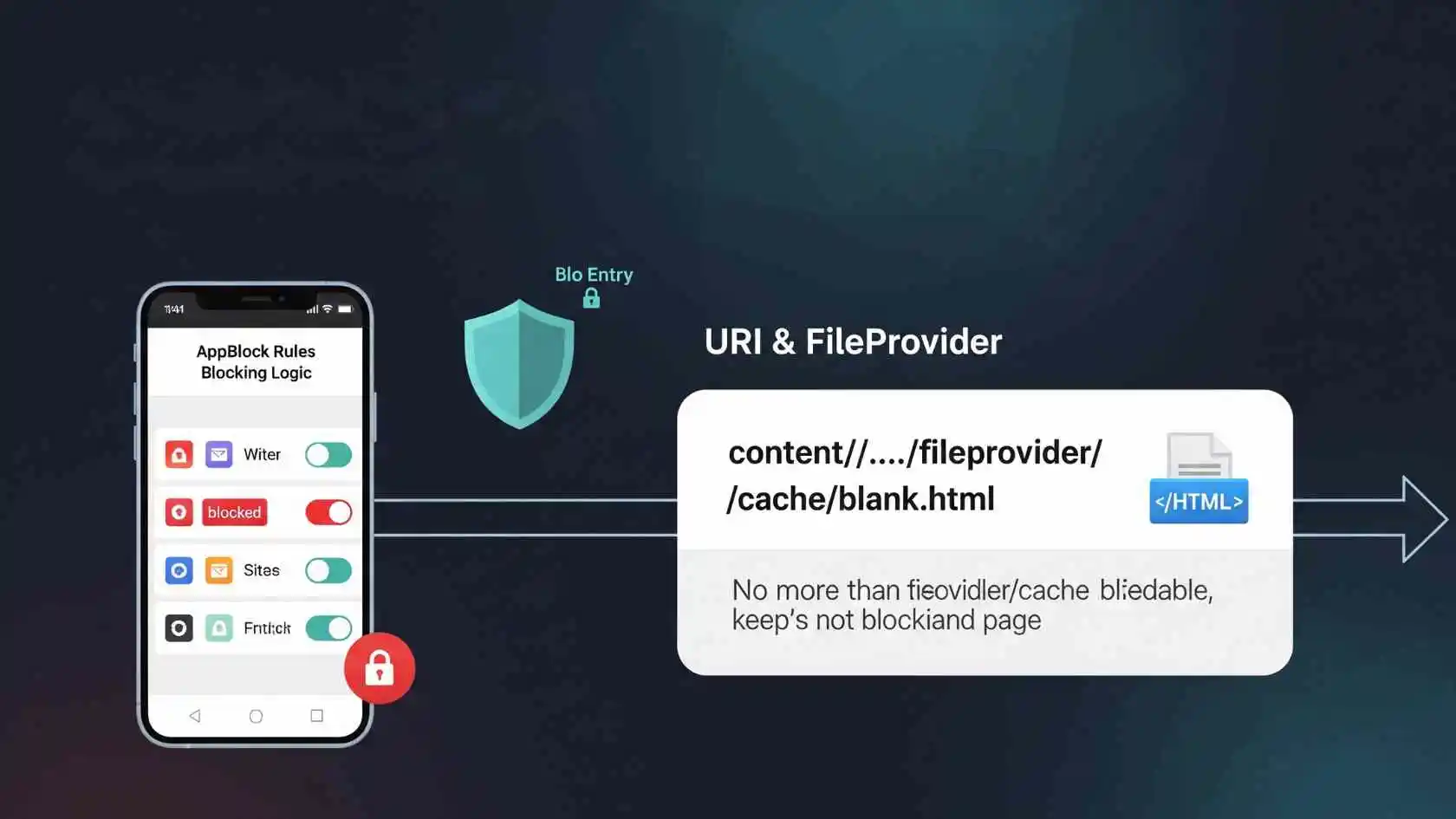
To understand this string, we have to look at how the Android operating system handles data sharing between apps. This is not a website URL in the traditional sense; it is a Content URI.
Breakdown of the Technical Path:
-
content://: This is a standard prefix in Android that tells the system to fetch data from a “Content Provider” rather than a web server.
-
cz.mobilesoft.appblock: This is the unique package identifier for the AppBlock application, developed by MobileSoft.
-
fileprovider: This is a specific component used to securely share files between apps.
-
cache/blank.html: This refers to a temporary blank HTML file stored in the app’s cache folder, used to display a neutral screen when a site is blocked.
Expert Insight: This path is a sign that the AppBlock app is actively intercepting a web request. Instead of showing you the restricted website, it is attempting to redirect your browser to a “blank” local file to prevent distractions.
Instead of loading the restricted website, AppBlock redirects the browser to a locally stored blank page.
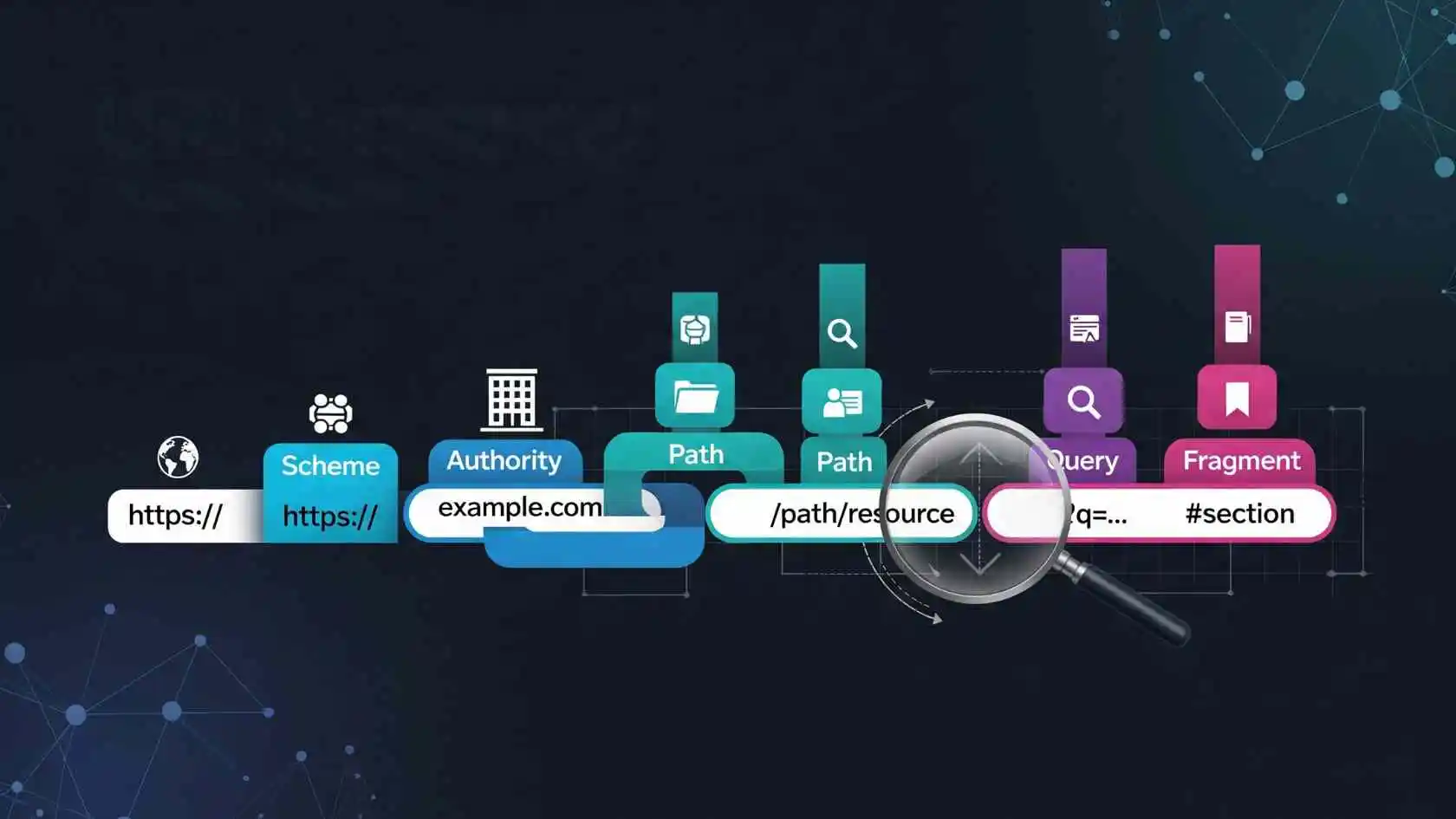
Breaking down the URI:
| Component | Meaning |
|---|---|
| content:// | Android content provider protocol |
| cz.mobilesoft.appblock.fileprovider | AppBlock’s internal file provider |
| /cache/blank.html | Local placeholder page |
In simple terms:
When a website is blocked, AppBlock shows a blank page instead of the actual content.
Why Does This URI Appear Suddenly?
There are three primary reasons why this specific path might get “stuck” or appear as an error on your device:
-
Active Blocking Rules: You have set up a strict profile in AppBlock that restricts certain websites or apps during specific times.
-
Browser Incompatibility: Sometimes, mobile browsers like Chrome or Firefox don’t know how to render a local “blank.html” file redirected from an external app, resulting in a “File Not Found” or a white screen.
-
App Conflict: If you are using a VPN or another security layer alongside AppBlock, the hand-off between the network and the app can fail, leaving the URI visible in the address bar.
How to Resolve the “Blank.html” Display Issue
If this screen is preventing you from accessing necessary content, follow these verified troubleshooting steps:
1. Audit Your AppBlock Profiles
The most common cause is a forgotten blocking rule.
-
Open the AppBlock app.
-
Go to your Profiles tab.
-
Check if “Web Shield” or “Chrome Blocking” is enabled.
-
Temporarily disable the profile to see if the website loads normally.
2. Clear App and Browser Cache
A corrupted cache file can cause the “blank.html” page to trigger even after a block is lifted.
-
For AppBlock: Go to Settings > Apps > AppBlock > Storage > Clear Cache.
-
For your Browser: Go to Settings > Apps > Chrome > Storage > Clear Cache.
3. Review Accessibility Permissions
AppBlock relies on Android’s Accessibility Services to “see” which URLs you are visiting. If this permission is glitchy, the app might misfire.
-
Go to your phone’s Settings.
-
Navigate to Accessibility.
-
Find AppBlock and toggle the service OFF and then ON again.
4. Check for VPN Conflicts
If you use a VPN, it might be bypassing the AppBlock local provider or causing a loop. Try disabling your VPN to see if the content:// path disappears.
Is content://cz.mobilesoft.appblock.fileprovider Safe?
Yes. This is a legitimate part of the AppBlock application. It is not a sign of malware or a phishing attempt. However, if you see this path and you do not have AppBlock installed, it could mean a remnant of a previous installation is still affecting your browser, or another app is using a similar package name.
It is safe if:
AppBlock is installed
web blocking is enabled
device productivity tools are active
Investigate further if:
you never installed AppBlock
unknown apps control your browser
unusual pop-ups accompany it
How AppBlock Uses This Content URI
AppBlock uses this system URI to manage blocked content without contacting external servers.
Benefits:
faster blocking response
improved privacy
offline functionality
reduced data usage
When a blocked URL is requested:
-
AppBlock intercepts the request
-
browser loading is stopped
-
blank local page loads
-
blocking rules remain enforced
Why You See a Blank Page Instead of a Block Message
Some browsers or configurations display only a blank page rather than a warning message.
This happens because:
-
browser rendering differs
-
system WebView behavior varies
-
app permissions limit display options
How to Fix the Issue
If you want to access the blocked website or stop seeing the blank page, follow these solutions.
Solution 1: Check AppBlock Settings
-
Open AppBlock
-
Go to Blocked Websites
-
Review restrictions
-
Remove blocked domains if needed
✔ Solution 2: Disable Focus Mode
Focus mode prevents access to distractions.
-
Open AppBlock
-
Turn off Focus Mode
-
Retry browsing
Solution 3: Pause Blocking Profile
If profiles are active:
-
tap active profile
-
pause blocking temporarily
Solution 4: Whitelist the Website
Add the website to allowed list to bypass blocking.
Solution 5: Disable Web Filtering
Inside AppBlock settings:
Settings → Web Blocking → toggle off
Solution 6: Clear Browser Cache
Sometimes cached blank pages persist.
Steps:
Settings → Apps → Browser → Storage → Clear Cache
Solution 7: Restart Device
This refreshes system WebView and filtering rules.
How to Identify If AppBlock is Causing the Issue
Check installed apps:
Settings → Apps → search AppBlock
If installed, it is the source.
What If You Don’t Have AppBlock Installed?
If you see this URI without installing AppBlock:
device management software may include it
parental control apps may integrate it
workplace security software may use similar blocking
Check:
-
digital wellbeing apps
-
enterprise security apps
-
parental control tools
Does This Affect Chrome, Firefox, or Samsung Internet?
Yes. Because AppBlock intercepts network requests at system level, it can affect:
Chrome
Firefox
Edge
Samsung Internet
WebView-based apps
Also Visit: bottlecrunch.com review
Impact on Chromebooks and Tablets
This URI may appear on:
-
Chromebooks using Android apps
-
Android tablets
-
school-managed devices
Enterprise restrictions may enforce content blocking policies.
Also Read: OCA0188 Error | What It Means and How to Fix It
Preventing the Issue in the Future
If you want to avoid seeing this blank page:
configure allowed sites
use scheduled blocking
disable unnecessary filters
avoid strict blocking profiles
Expert Tips for Better Control
-
Use AppBlock schedules instead of permanent blocking
-
whitelist productivity tools you need
-
keep WebView updated
-
avoid overlapping blocking apps
When Should You Keep the Blocking Active?
This feature is useful for:
productivity improvement
parental control
digital detox
reducing distractions
protecting children
Final Thoughts
The appearance of content://cz.mobilesoft.appblock.fileprovider/cache/blank.html is a technical byproduct of a productivity tool doing its job. By understanding that it is a local redirect rather than a web error, you can easily manage your settings to ensure a smooth browsing experience while staying focused.
Seeing the URI content://cz.mobilesoft.appblock.fileprovider/cache/blank.html can be confusing, but it is not harmful. It is simply a content-blocking mechanism used by the AppBlock application to prevent access to restricted websites.
Understanding how it works empowers you to control your browsing experience whether your goal is productivity, parental control, or unrestricted access.
By adjusting AppBlock settings or managing filtering tools, you can easily eliminate the blank page issue and restore normal browsing.
FAQs
It is a local placeholder page generated by the AppBlock app when a blocked website is intercepted.
No. It is a safe system-generated content URI used by the AppBlock productivity app.
Because AppBlock blocked the website and redirected the request to a blank local page.
Disable blocking in AppBlock, whitelist the website, or turn off focus mode.
Yes. Remove the site from AppBlock restrictions or pause blocking.
Because AppBlock intercepts network requests at the system level, affecting all browsers.
Check for parental control apps, digital wellbeing tools, or enterprise security software.
Yes. Removing the app will stop the redirect behavior.
No. It is related to content blocking rules, not system failure.
Yes. Managed devices often use content filtering policies.